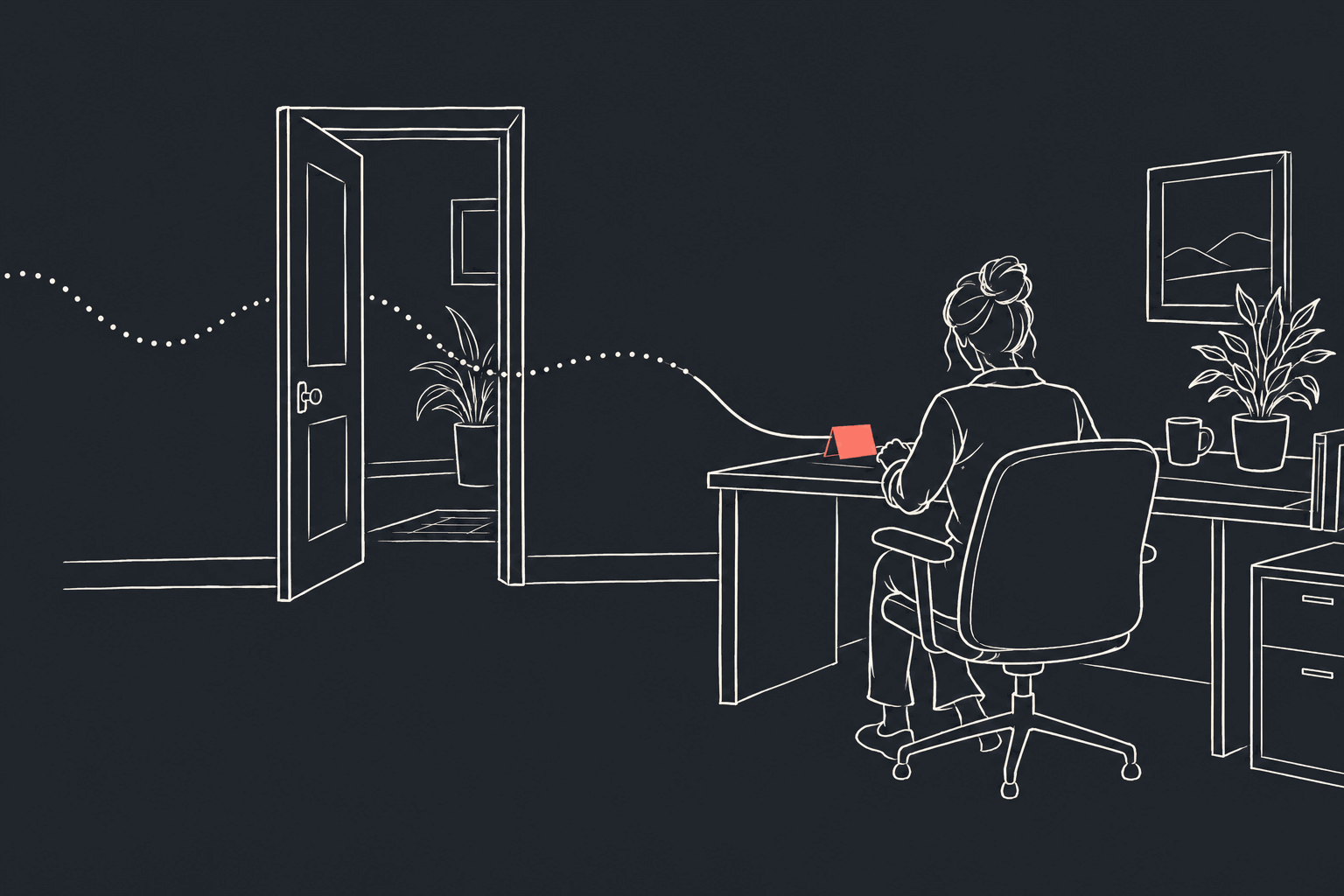
AI voice agent call transfer is live on Talkif: your agent can now hand a live call to one of your people without the caller hanging up and dialling again. You add a Transfer node to an agent, describe in plain words when it should transfer, and choose who gets the call: an outside phone number, a group of numbers that ring together, whoever on your team is online in the dashboard, or your own software. A cold transfer connects the caller the moment someone answers. A warm transfer has the agent brief your colleague first while the caller waits on hold. Every transfer carries a short case file, and when nobody answers, the agent stays with the caller instead of letting the line ring out.
Setup takes a few minutes and is described step by step in Transfer calls to people. What follows is what happens on a transferred call, what you can configure, and where the limits are.
Warm transfer vs cold transfer
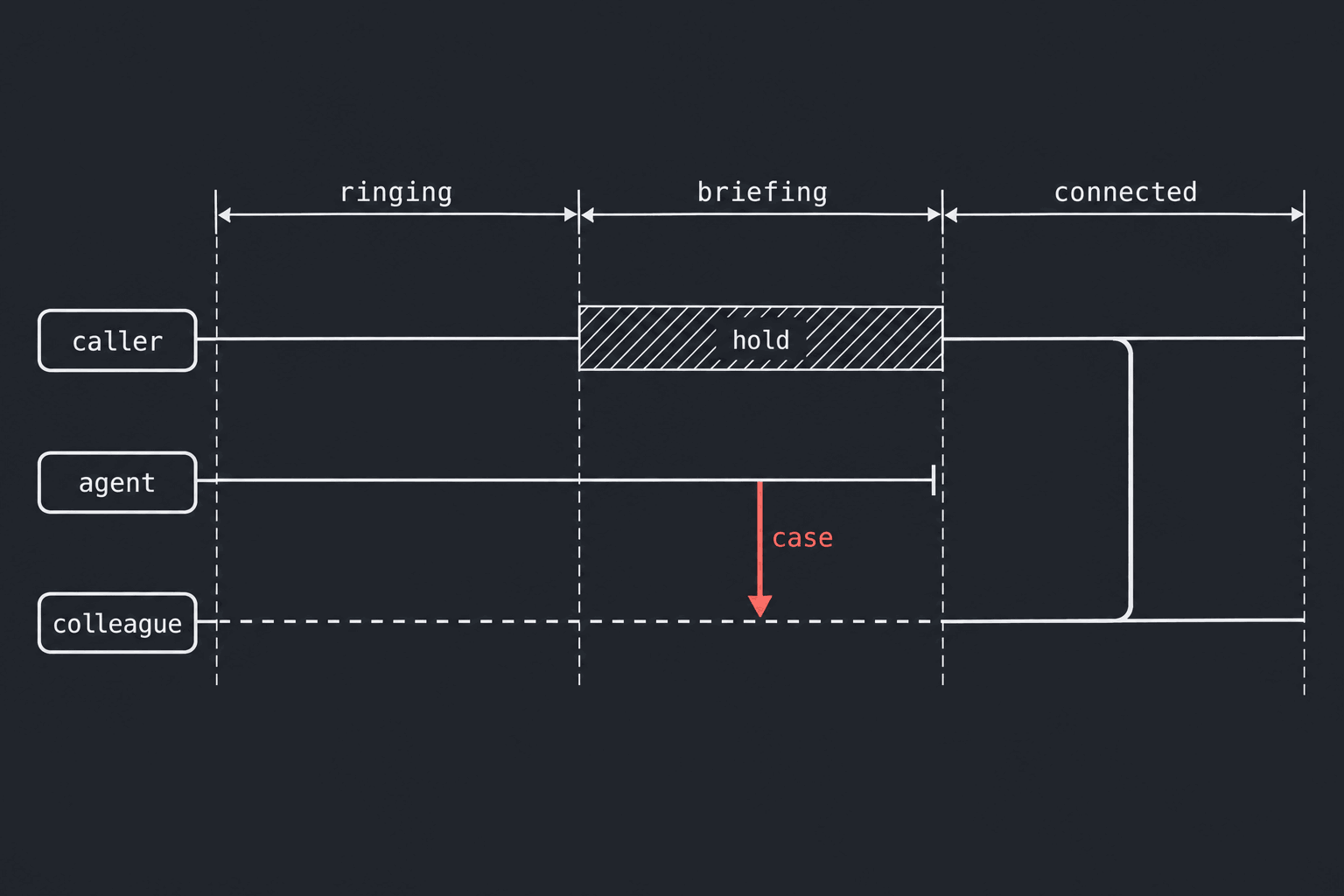
Both modes ring the same destinations and end the same way: the caller talking to your person, and the agent gone. The difference is what happens in between.
| Cold transfer | Warm transfer | |
|---|---|---|
| When your colleague answers | They are connected to the caller straight away | The caller goes on hold and the agent briefs your colleague |
| What your colleague knows | The case on the incoming-call window, if they answer in the dashboard | The case read out to them, with the chance to ask the agent a question |
| Time the caller waits after the answer | A moment | The length of the briefing, capped at one minute |
On Talkif the choice mostly comes down to where your people answer. A teammate who takes calls in the dashboard reads the reason, the summary and your custom fields on the incoming-call window before accepting, so a cold transfer already arrives with context. A colleague on a desk phone or a mobile sees only a number, and that is where a warm transfer earns the few seconds of hold: they hear the case before they say hello.
What the caller hears, from start to finish
What a caller hears during a transfer is the same on every flow, so you do not have to design it.
- Before dialling, a short line in the flow's language, such as "Connecting you now, please hold." The platform speaks this line itself, so it is said the same way every time and never delays the transfer.
- While it rings, the agent stays on the line with the caller. It does not keep talking for the sake of it, but if the caller says something, it answers, so the wait never sounds like a dropped call.
- When a colleague answers a warm transfer, the agent finishes the sentence it was in and tells the caller "I've reached a colleague — please hold." The caller then hears a soft two-note tone every three seconds. It is deliberately not a ringing tone, so the hold is not mistaken for a call nobody picked up.
- At the moment of connection, both sides hear a short chime. It marks the instant the caller and your colleague can hear each other, and it is left out of the recording.
Your colleague, on their side, hears none of the lines meant for the caller. From the moment they answer until they are briefed or connected, the agent talks to one side at a time.
The AI decides when, you decide where
A transfer has two halves, configured in two places.
When to transfer is the model's call, made from the description you write on the node under When should the AI transfer? It is read like a prompt, and it matters as much as one. "Use when the caller asks for a person, or wants to change an existing contract" transfers the right calls. "When needed" transfers far too many.
Where the call goes is never the model's call. The transfer tool the model sees has no field for a phone number or a web address: it can only start the transfer and pass the case details. The destination comes from your configuration, which an owner or admin sets up under Settings → People & numbers. So no prompt, and no caller who says "just put me through to this number", can make the agent dial somewhere you did not list. Emergency and special-service numbers, and premium-rate and shared-cost numbers, are refused when a destination is saved.
The node's Who should get the call? field has three tabs:
| Tab | What rings |
|---|---|
| Phone number | One outside number: a desk phone, a mobile, a call-centre line |
| Your team | Everyone online in the dashboard, one team, several teams the AI picks between, a fixed set of people, or a destination group |
| Your app | Your own server, through a signed webhook |
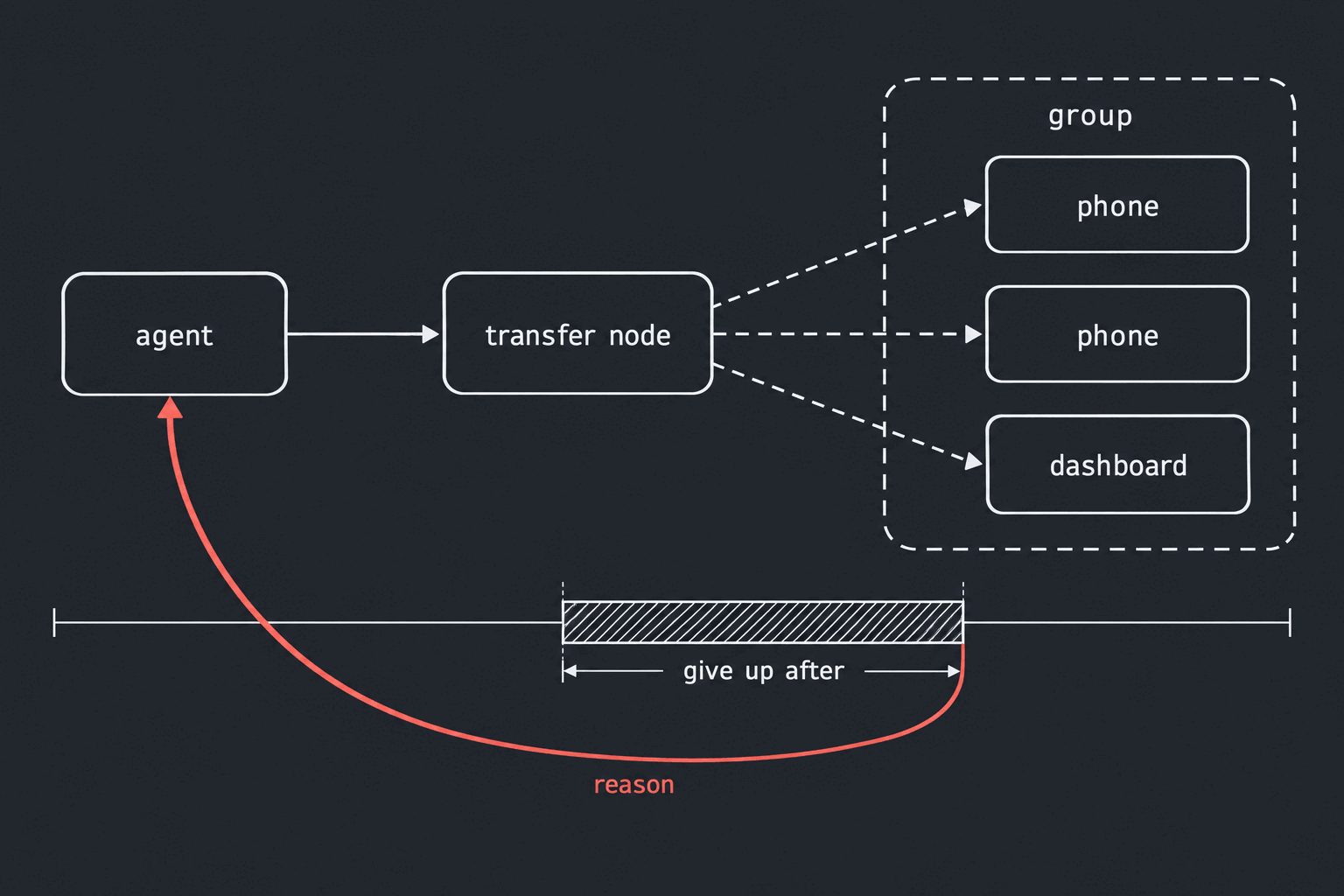
A destination group rings several destinations at once, and the first to answer gets the call. A group can mix phone numbers and people in the dashboard: "Support desk" might be two desk phones plus whoever is online. You set how long each member rings, from 5 to 45 seconds, and a Give up after time for the whole group, 30 seconds by default. Groups are the usual target, because changing who picks up then means editing the group, not republishing a flow. A destination or group that a published flow uses cannot be deleted until no flow points at it.
Teams, tags and working hours
In a team account, each member can carry tags such as sales, billing or turkish, and an optional weekly schedule of available hours in their own time zone. A transfer can be limited to a tag, and then it rings only the members who carry that tag, are within their hours, and are available right now. If nobody matches, nobody is rung and the transfer fails like an unanswered one. It never quietly falls back to ringing everyone.
Pick one team on the node and the node rings that team. Add a second and the AI chooses between them from the conversation, up to eight teams, each with a one-line description the model reads to decide, such as "Internet, modem or line problems." A billing question goes to billing, a caller who switched to Turkish goes to turkish, and you never had to write that routing as branches in the flow.
An AI-to-human handoff with the case attached
Every transfer on Talkif carries a handoff case, so the person who picks up does not open with "How can I help you?" and make the caller start over.
| Field | Always there | What it holds |
|---|---|---|
| Reason | yes | Why the caller is being transferred |
| Summary | yes | What was discussed so far |
| Caller name | when given | The caller's name |
| Your own fields | up to eight | Whatever your team needs, such as an order number or a contract ID |
The model fills the case as part of the transfer itself. Mark one of your fields required and the agent asks the caller for it before it transfers, which is useful when your team cannot do anything without, say, an account number. The case is data only: nothing in it can change where the call goes.
In a warm transfer, your colleague hears the case as a short briefing assembled from those fields rather than paraphrased: who is calling (the name, or the number when there is no name), the team, the reason, your custom fields, and the summary if there is room, ending with "Say when you're ready and I'll connect them." Because the fields are read as they were captured, an order number reaches your colleague as the caller gave it. When the briefing ends your colleague can ask the agent a question, or say nothing and be connected after a couple of seconds. The briefing follows the flow's language in English, Turkish, German, Spanish or French, and is read in English for any other language.
When nobody answers
When nobody answers before the group gives up, the line is busy, your colleague declines, or nobody is available at all, the agent that started the transfer is told what happened and carries on with the caller. A good prompt for that agent says what to offer then, a callback or taking a message. The caller was never put on hold while it rang, so the conversation simply continues.
If your colleague hangs up within 15 seconds of being connected, through a misdial or a dropped line, the agent comes back to the caller, apologises, and offers to help or take a message instead of leaving them in silence.
A call is offered to people at most twice. A third attempt fails straight away, so a caller is not put through the same ringing again. And a teammate who lets three transfers in a row ring out without accepting or declining is set to Away, so callers are not kept waiting on someone who has left their desk.
Taking calls in the dashboard
Your colleagues do not need a desk phone. Anyone on your team can take a transferred call in the Talkif dashboard in their browser. Two switches decide whether a call rings you: Ring in this browser, which needs an open dashboard tab and your microphone, and your team status, which says whether you want calls right now (Available, Away for 1 hour, Offline and so on). Both must be on; the status button in the top bar then says Taking calls.
When a transfer reaches you, an Incoming transfer window opens with a ringtone, the caller, the flow, whether it is warm or cold, a countdown, and the handoff case. The first person to accept gets the call, and the offer stops ringing for everyone else. Declining lets the transfer move on without waiting for the countdown.
Owners, admins and members can also step in on a live call that was never transferred. Listen joins with your microphone off: you hear the caller and the agent, and nobody hears you. Take over unmutes you, the agent says a short line to the caller and leaves, and the call is yours. Several teammates can listen to one call; only one can take it over. Where local law requires it, tell callers that a person may listen in or join, for example with a fixed line at the start of the call; Talkif does not announce it for you. The details are in Take calls in the dashboard.
Sending transfers to your own software
If your team works in its own contact-centre software, a Your app destination hands the call to it. Talkif sends your server a signed webhook with the caller and the handoff case, your server accepts the offer with a narrowly scoped API key, and then joins the call audio over a websocket. A Your app destination can sit in a group next to phone numbers and people, and the first to accept wins. The webhook, the accept call and the audio format are in Receive transfers in your app.
The call stays with us
A common way to transfer a call is to ask the phone carrier to move it, with a SIP REFER: the platform tells the carrier to connect the caller to another number and steps out. The carrier owns the call from there, and the transfer only works where the carrier and the trunk accept it.
We do not hand the call to the carrier. The caller stays in a call we hold. Your colleague is brought in as a new participant, dialled from one of your own numbers or joined through the dashboard or your app, and the agent leaves while the call carries on. Holding the call ourselves is what lets the caller hear a hold tone while the agent briefs your colleague, and what lets the agent come back if your colleague drops. It also means a transfer does not depend on your carrier supporting call transfer.
It keeps your records whole, too. If the call is recorded, the recording keeps running after the handoff and covers the call from the first word to the last, with the caller's hold time silent. The transcript shows the caller, the agent and your colleague, turn by turn.
A transfer to an outside number is a new outgoing call, placed from the number you pick under Call from: a Talkif number or one from your own SIP provider, by default the number the caller dialled. Your colleague sees that number, or, if you choose, the caller's own number; some carriers reject the second.
What a transfer costs
The agent is billed as on any call for as long as it is on the line. That includes staying with the caller while the phone rings and, in a warm transfer, briefing your colleague. Its charges stop the moment it leaves the call.
The transfer leg itself costs nothing while it rings. From the moment someone answers, it is billed per second at the telephony rate of the number that placed it, with no AI components on top. A teammate who answers in the dashboard adds no carrier minutes. Telephony rates are on the pricing page.
Set it up in five steps
- Add destinations, if you need them. Ringing everyone online or a team needs no setup. Outside numbers and fixed sets of people go under Settings → People & numbers, as destinations and destination groups, and can also be managed by API to stay in sync with your own staff directory.
- Add a Transfer node to the agents that may transfer. Choose warm or cold, write When should the AI transfer?, and pick who gets the call.
- Under What should the AI collect first?, add the details your colleague needs, and mark the ones your team cannot work without as required.
- In the prompt of each agent that can transfer, say what to offer if nobody answers: a callback, or taking a message.
- Test with a real destination in the Flow Tester, then publish. A browser test call has no number of its own, so pick a Call from number to test a transfer to a phone.
Questions people ask
Does it work with my own SIP provider? Yes. The transfer leg is placed from whichever of your numbers you choose, and that number's provider carries it. Nothing depends on your carrier supporting call transfer.
Can the caller hear the briefing? No. During a warm briefing the caller hears only the hold tone, and the agent talks only to your colleague.
What happens if a caller hangs up while it rings? The ringing stops everywhere, including any dashboard windows that were offering the call.
Developers
Kubernetes CPU limits made our audio 126 ms late
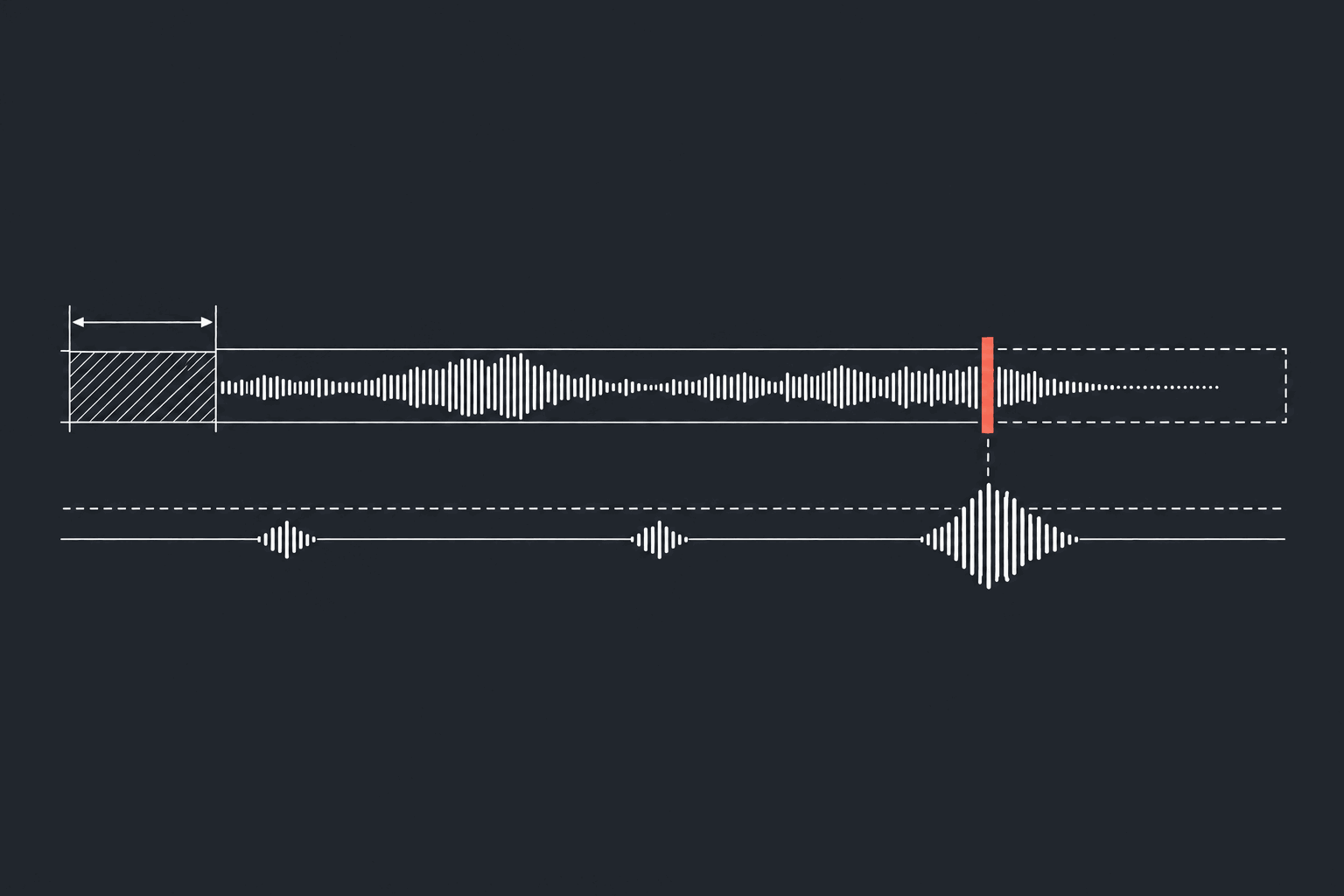
Kubernetes CPU limits made our 20 ms audio clock send packets up to 126 ms late; cpu.stat showed why, and the fix added no machines.
Developers
Turn detection that doesn't talk over you
How our voice agent's turn detection decides a caller has finished, when an interruption is real and when to stay quiet, and the incidents behind it.
Integrations
Meta lead ads, called on arrival and reported back
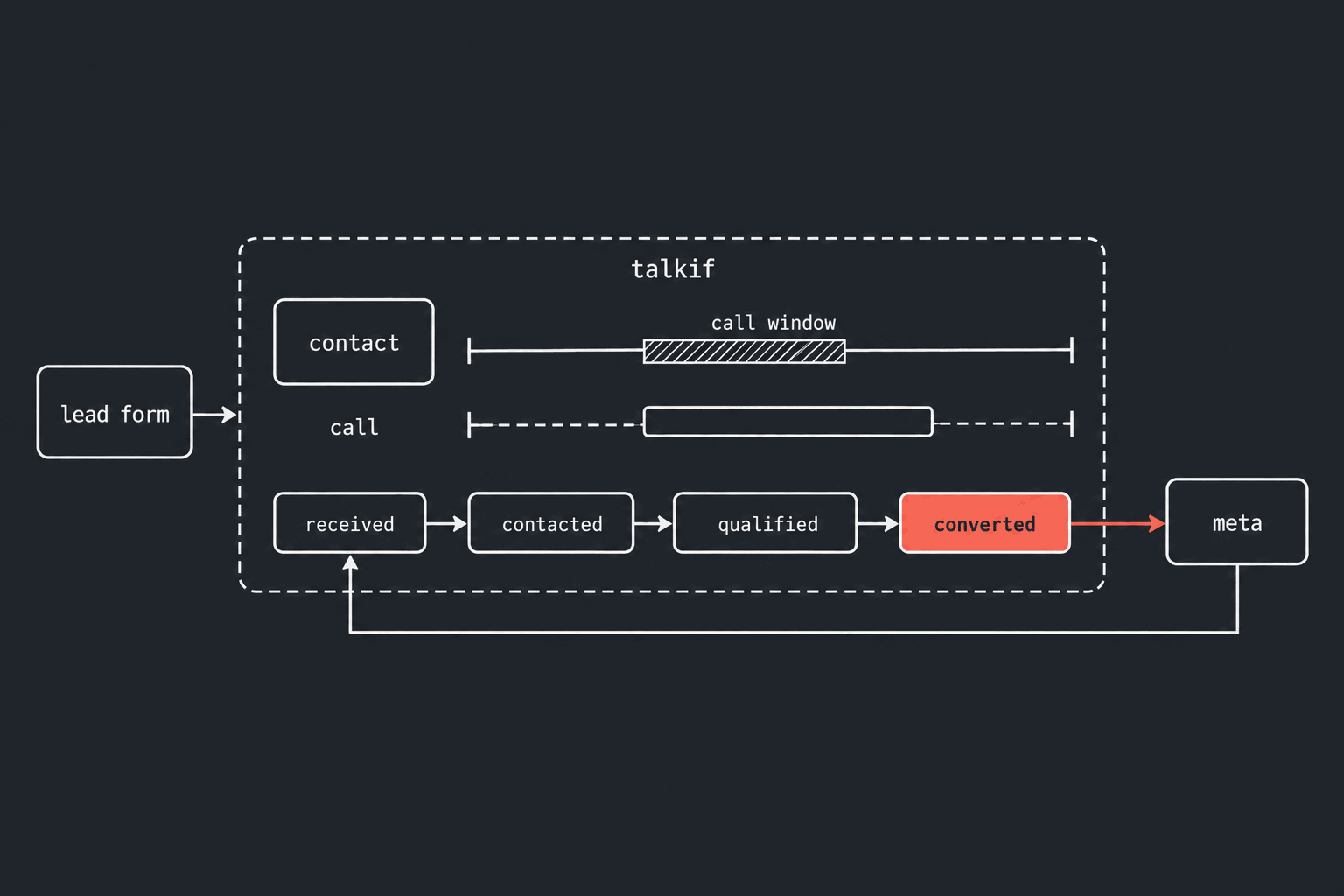
Connect Meta lead ads to Talkif: each lead is called within your calling hours, and received, contacted, qualified and converted go back to Meta.
Developers
Webhook SSRF, closed by a sender that holds nothing
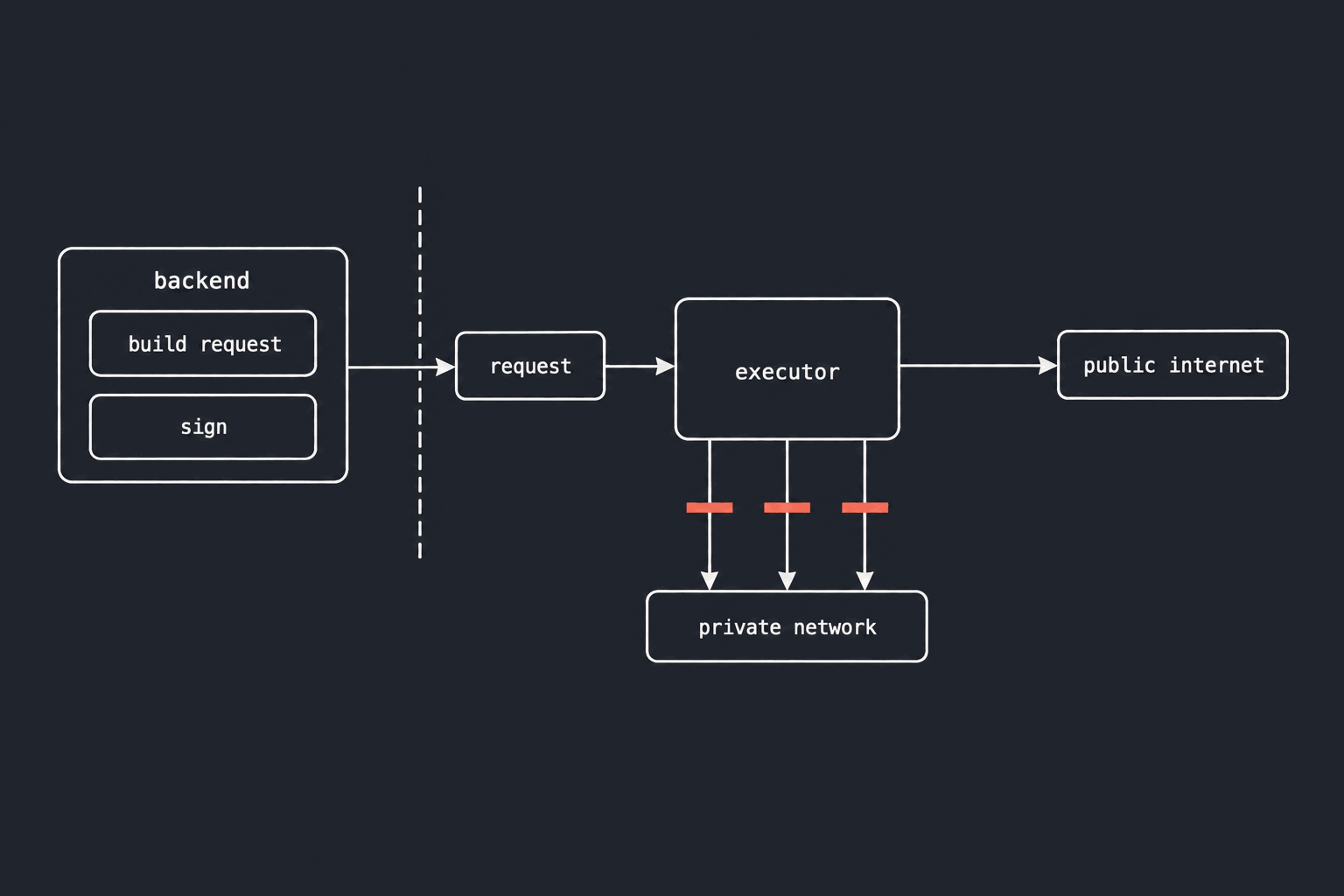
Webhook SSRF closed twice: the process with your secrets never sends, and the process that sends can reach only the public internet.
Questions about this piece? Write to us.